
01 / OVERVIEW
What Surveys are
Surveys are a dedicated module in Lily for collecting structured feedback and audience information.
A survey can combine familiar profile fields, such as name, city or telephone, with your own questions. The result is more than a set of isolated answers. Where Lily can identify the respondent, survey data can become another source of insight around the audience profile, alongside purchases, permissions and engagement.
02 / CREATE
Create a new survey
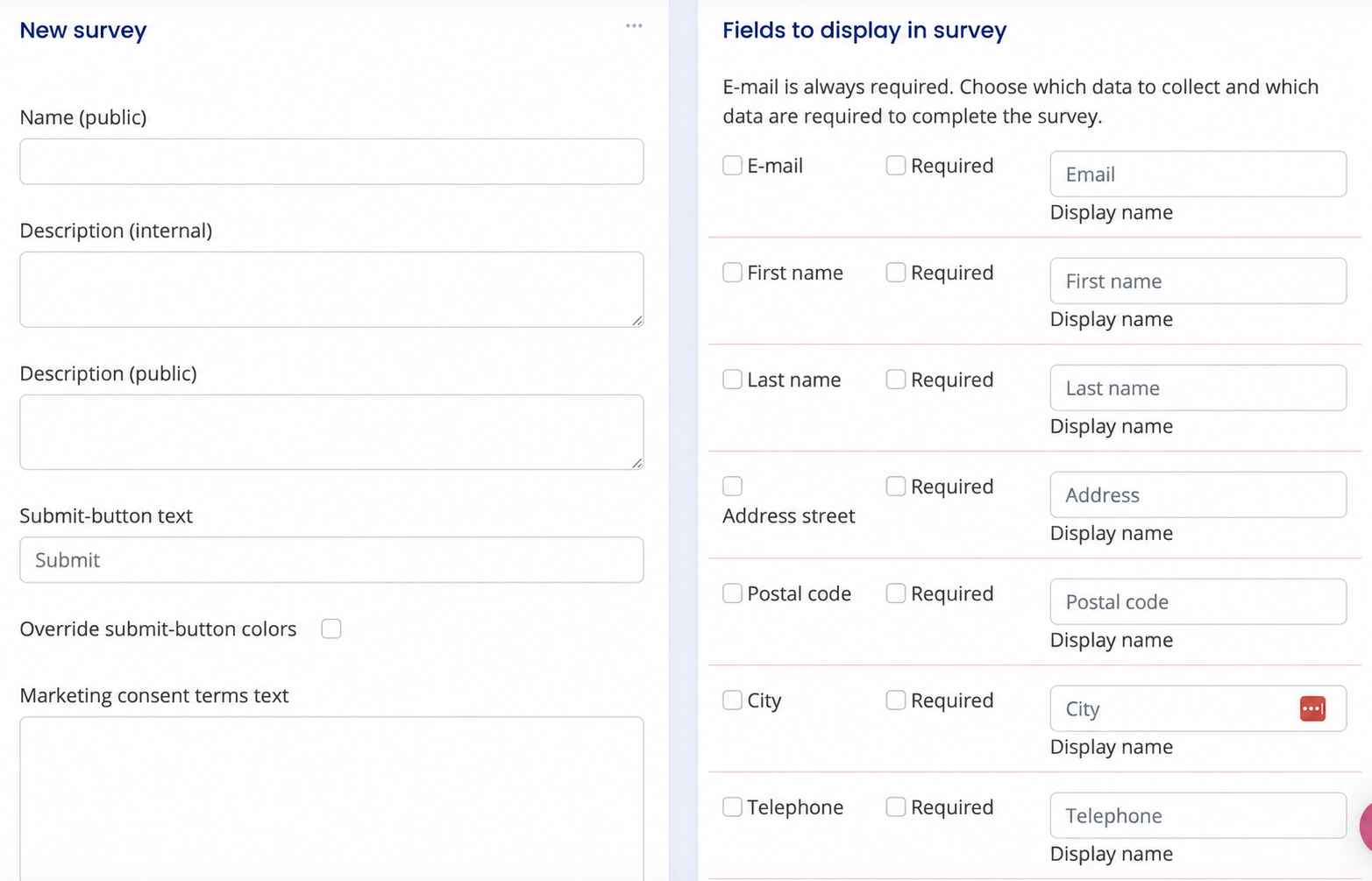
Start in the Surveys module and choose New survey.
Name the survey
The public name is shown to respondents.
Add context
Use the internal description for your team and the public description for respondents.
Set the action
Write clear submit-button text that matches the purpose of the survey.
03 / PROFILE DATA
Choose the profile fields you need
Lily lets you choose standard contact and profile fields for the survey, including:
- First name
- Last name
- Address
- Postal code
- City
- Telephone
You can adapt the display name for each selected field and mark a field as required where the survey interface supports it.
04 / QUESTIONS
Add custom questions
Custom fields turn a contact form into a survey that reflects what your organisation actually wants to learn.
Create questions in Manage custom fields, then add the fields you need to the survey. The current interface shows reusable field types for free text, a single checkbox, multiple checkboxes and dropdown selections.
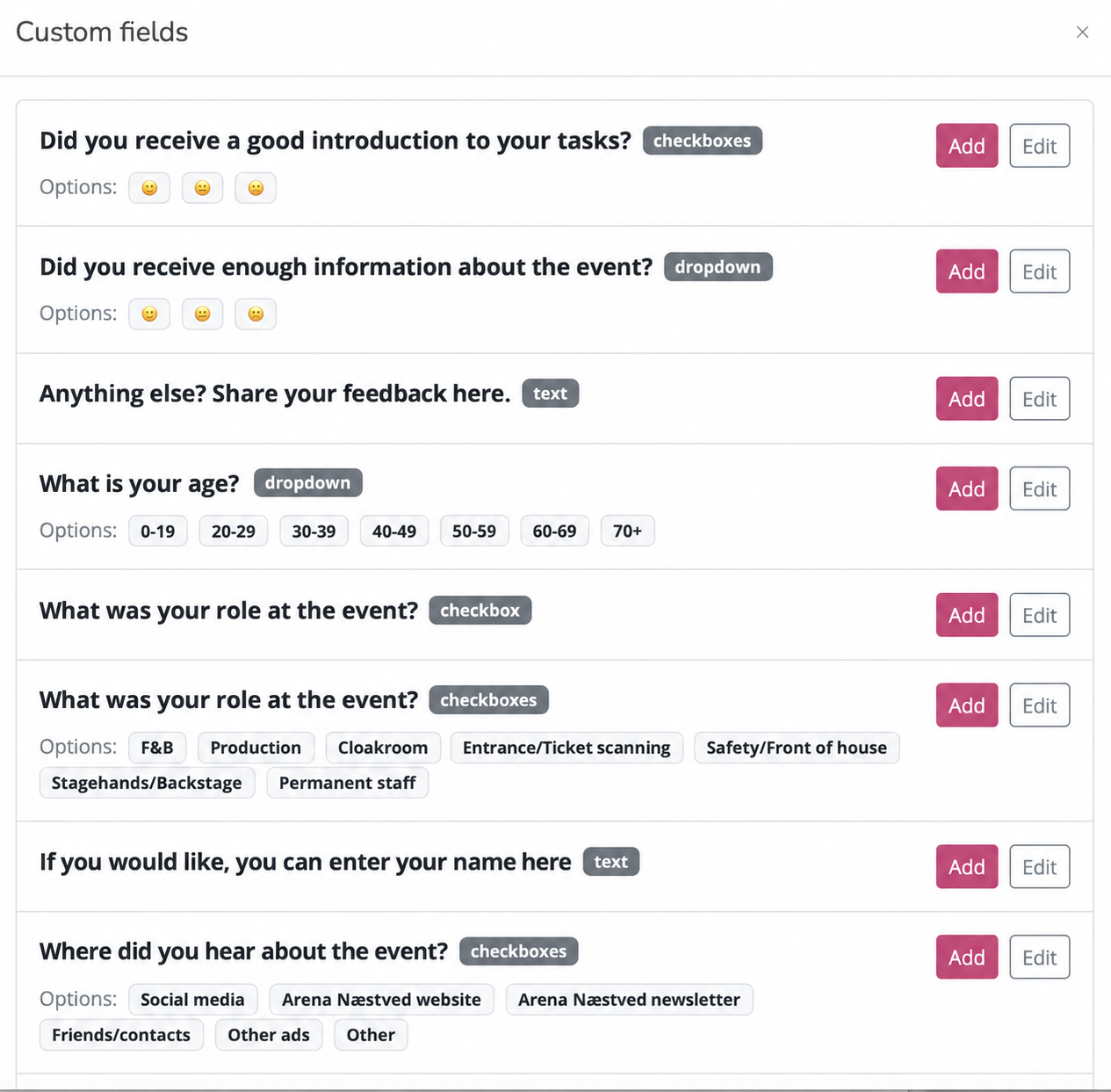
Open feedback in the respondent’s own words.
One answer from a controlled set of options.
A single opt-in or yes/no style choice.
One or more answers from a set of options.
05 / SETTINGS
Customize consent, confirmation and notifications
The survey settings let you shape what happens before and after a response is submitted.
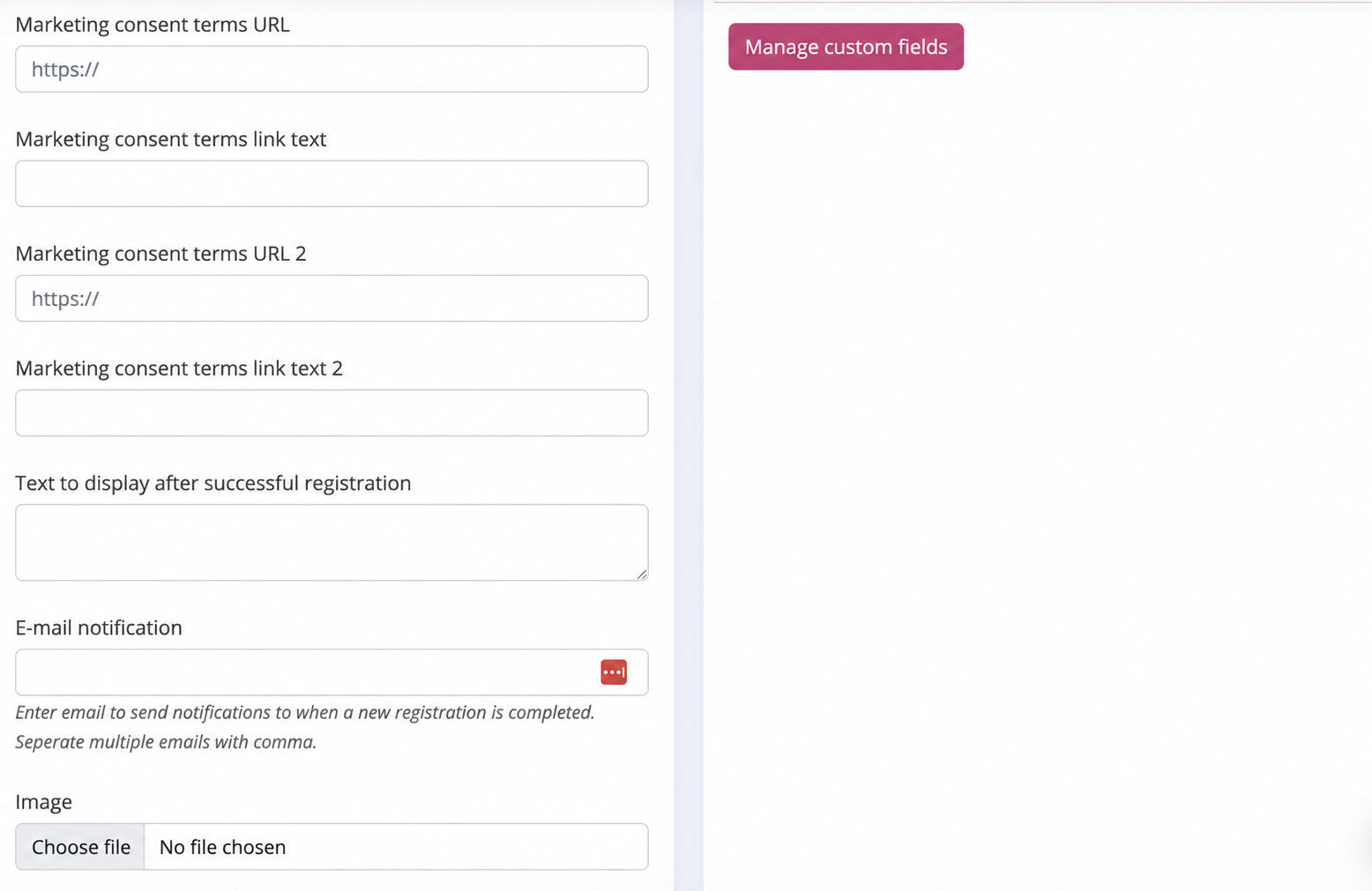
- Marketing consent termsAdd consent copy and up to two linked terms or policy pages with your own link text.
- Success textConfirm that the response has been received and explain what happens next.
- E-mail notificationNotify one or more internal recipients when a new registration is completed. Separate multiple addresses with commas.
- Image and button colorsAdd a survey image and, when needed, override the default submit-button colors.
06 / PRESENTATION
Make the survey feel like you
Survey structure and survey presentation are two different layers.
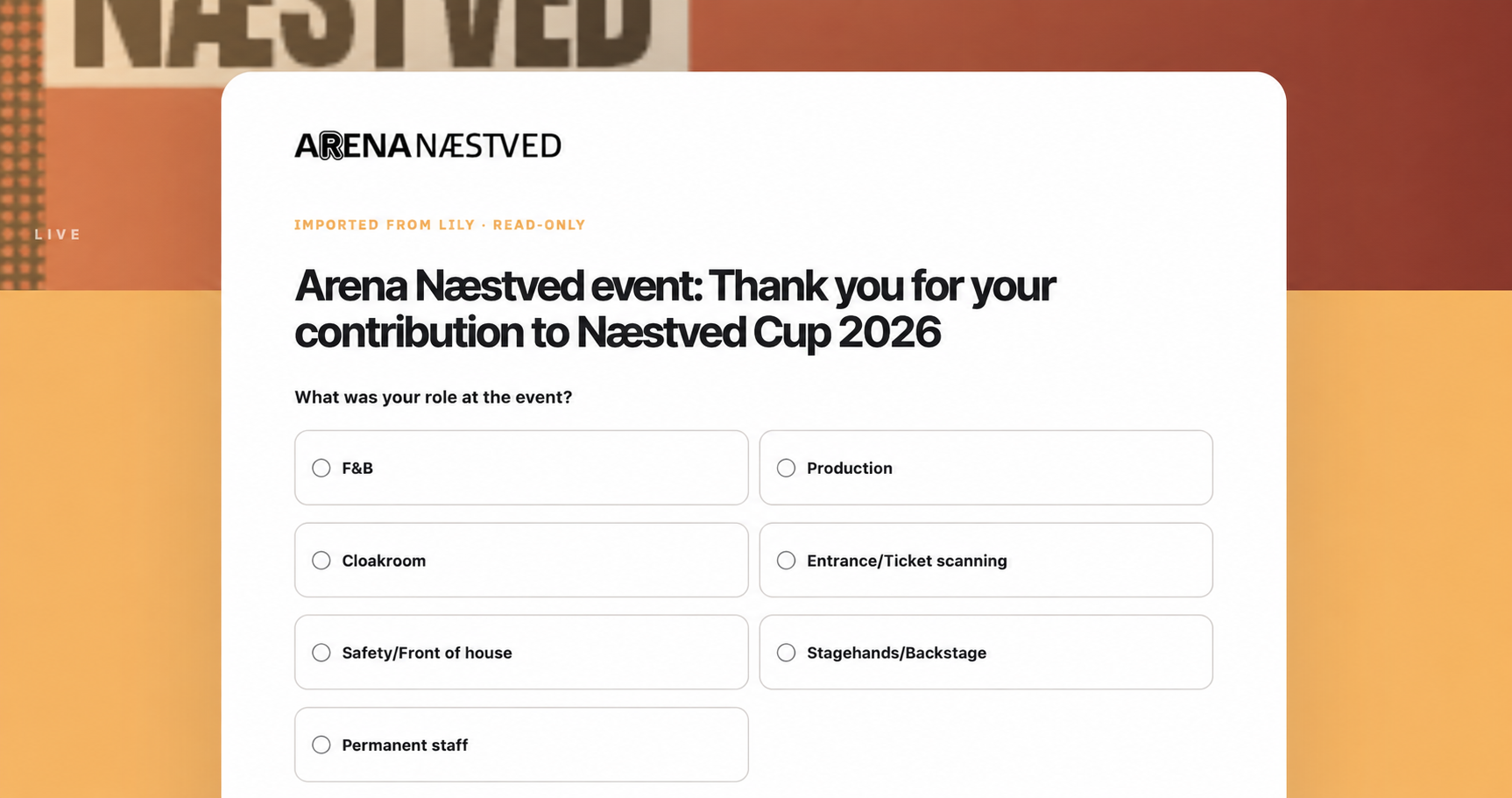
Lily holds the questions, options and response settings. Lily AI Survey Composer can then create a branded survey experience based on your visual identity.
The composer changes how the survey is presented. It does not rewrite the questions, answer options or system values that were configured in Lily.
07 / DISTRIBUTION
Publish, share or embed
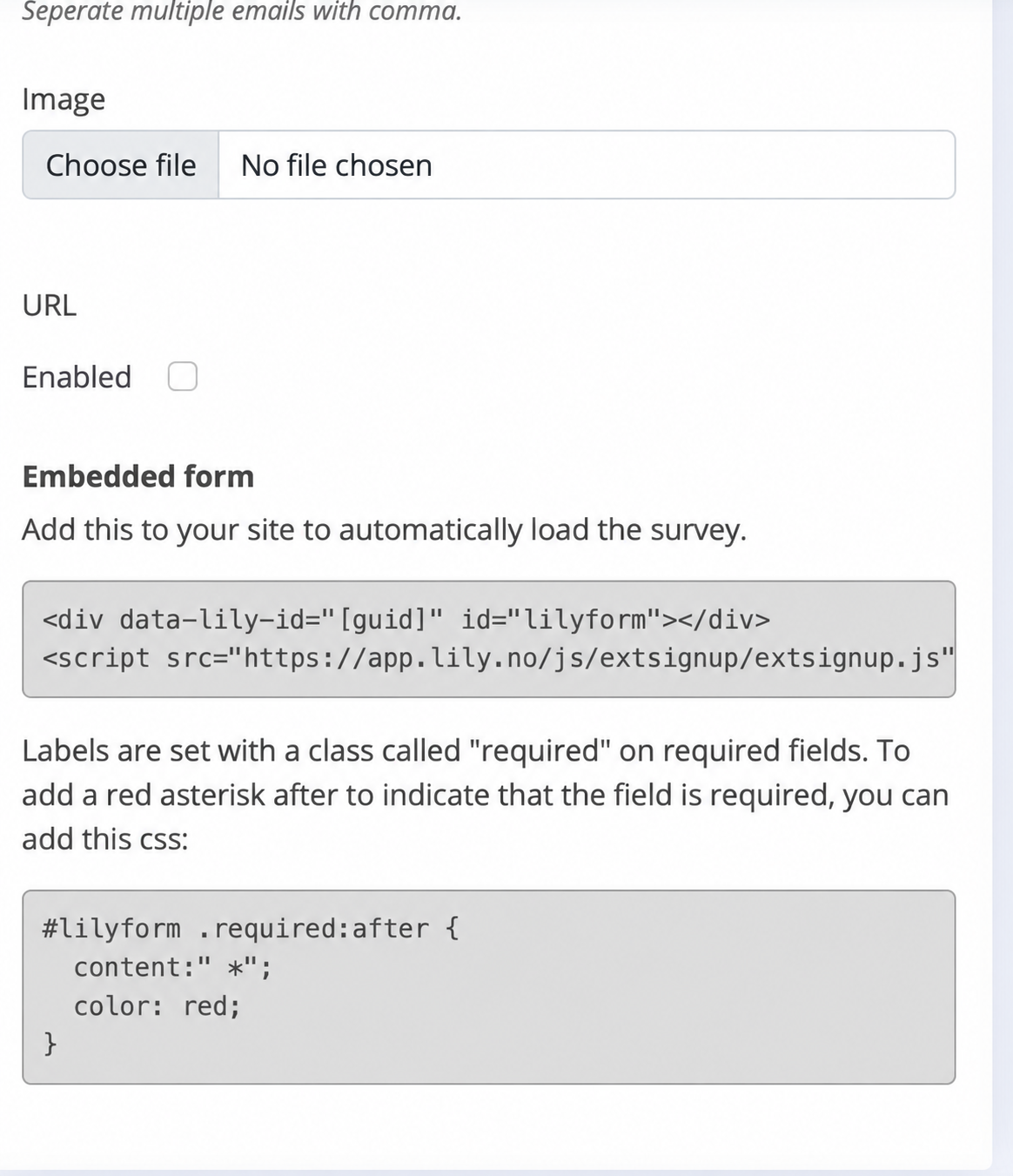
Make the survey available through its Lily URL or place it directly on your own website.
Enable
Use the survey’s Enabled setting when it is ready for respondents.
Share
Use the survey URL in the channels that fit your audience and purpose.
Embed
Copy the embedded form code from Lily and add it to your website.
08 / RESPONSES
Read responses as audience data
Review the responses collected through the survey in Lily. Look for patterns across questions, not only individual comments.
When responses can be associated with known audience profiles, they add declared insight to the wider audience picture. This is useful because surveys answer questions that transactions and clicks often cannot.
Surveys help explain what they think.
09 / EXAMPLES
Practical ways to use Surveys
Learn what worked
Ask about the overall experience, information, venue, service or likelihood to recommend.
Understand interests
Collect declared preferences about genres, formats, topics or future experiences.
Add useful context
Ask for the few demographic details that are relevant to your analysis.
Improve delivery
Collect structured feedback from staff, volunteers or event teams after an event.
Combine an entry with insight
Use a focused form-like survey when participation and a small number of questions belong together.
Explore a decision
Test a clear question with a defined audience before making a programming or communication choice.
10 / BEST PRACTICES
Make every question earn its place
- 01Start with one learning goal.
Know what decision the answers should help you make.
- 02Keep it short.
Ask only the questions that support that goal.
- 03Reuse what Lily already knows.
Do not ask for profile data again unless it is needed for this response.
- 04Make optional fields optional.
Reserve required fields for information you genuinely cannot do without.
- 05Use clear answer options.
Avoid overlapping choices and leave room for useful open feedback.
- 06Close the loop.
Use the success text to thank respondents and set expectations.
Ready to begin?
